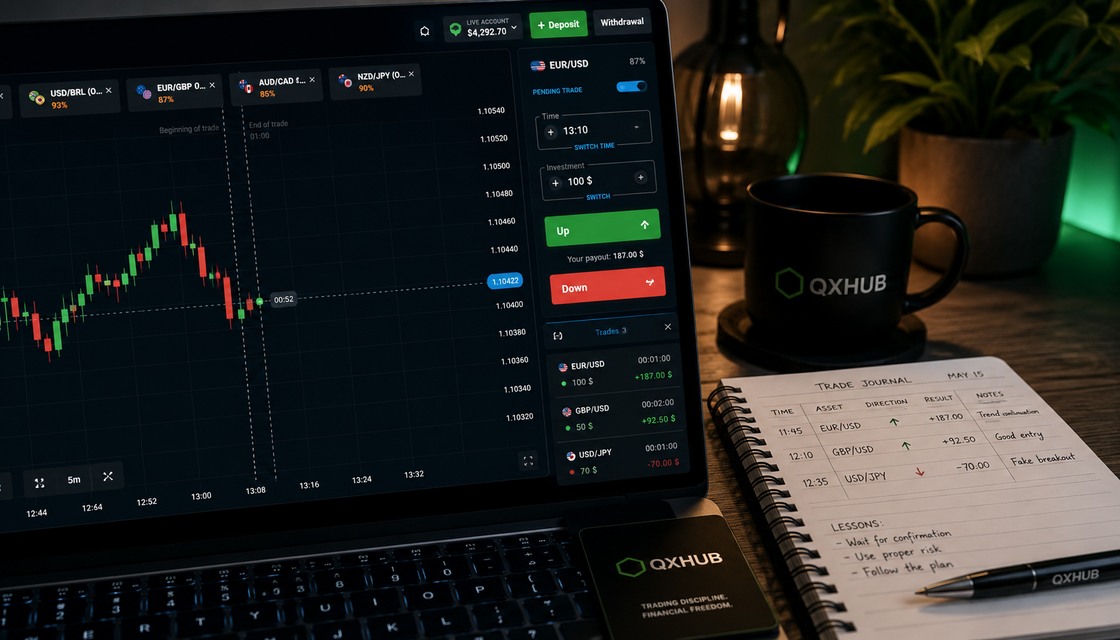
Quotex trading interface
Quotex Trading Interface Explained for Beginners
Learn how the Quotex trading interface works: asset selector, chart area, trade panel, demo mode, mobile view and the checks beginners should make before every trade.
Quick answer
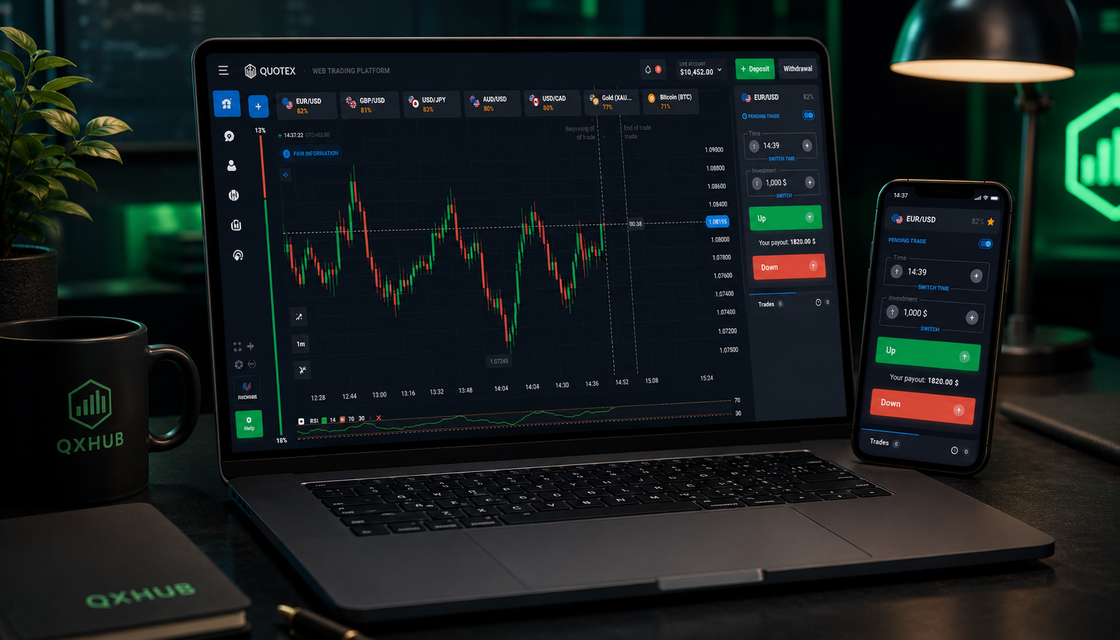
The Quotex interface is easiest to understand as five connected zones: asset selector, chart, trade panel, account mode and trade history. A beginner should learn where each zone is, practise the sequence on demo and check asset, amount, expiry and account mode before considering a live trade.
- Treat the interface as a working environment, not as a screen that asks for a fast click.
- Read the chart before touching the trade panel; the buttons execute an idea but do not create one.
- Confirm the asset, amount, expiry and demo or live mode before every entry.
- Keep the chart simple and use only tools that make the current market structure clearer.
Why the Quotex interface matters more than beginners think
A clean platform does not automatically make someone a better trader, but knowing the layout removes avoidable confusion. When you can locate the asset list, chart, amount field, expiry selector, account mode and history without searching, more attention stays on analysis and discipline. Beginners who skip this orientation often click the wrong asset, leave an unintended amount, forget the selected duration or enter while looking at the wrong account mode. The first goal is not speed. It is moving through the platform calmly enough that each action is deliberate.
The main interface layout at a glance
Most beginners can divide the Quotex trading screen into five practical zones. The asset area chooses the market. The chart area shows how price is moving. The trade panel controls amount, time and direction. The account area shows demo or live context and balance actions. The history area records open and completed activity. These zones work as one decision chain: choose a market, read it, prepare the execution settings, confirm the account context and review what happened. Understanding that chain makes the platform much less intimidating.
1. Asset selector: choose the market before the setup
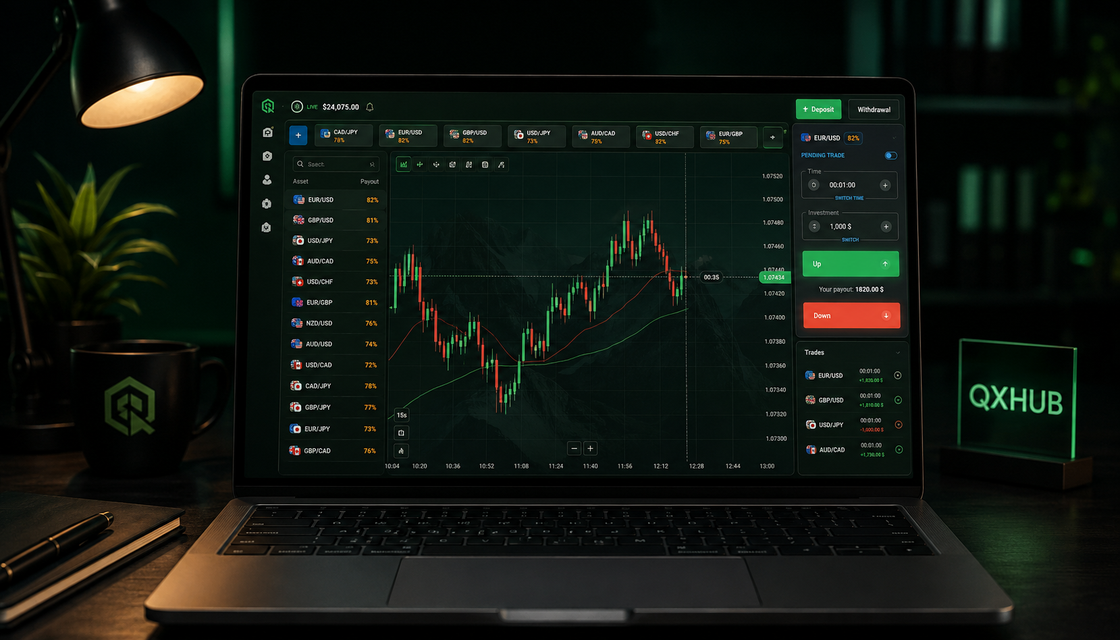
The asset selector determines which market appears on the chart. Availability can include currency pairs, commodities, stocks, indices or crypto-related instruments, depending on the current platform and region. Easy switching can tempt a beginner to jump between markets every few minutes, but variety is not the same as progress. Choose one or two readable assets for a practice session and learn their rhythm. Before analysing anything, confirm the asset name and current conditions. A clean chart on a familiar market is usually more useful than the most active-looking instrument in the list.
2. Chart area: read price before the buttons
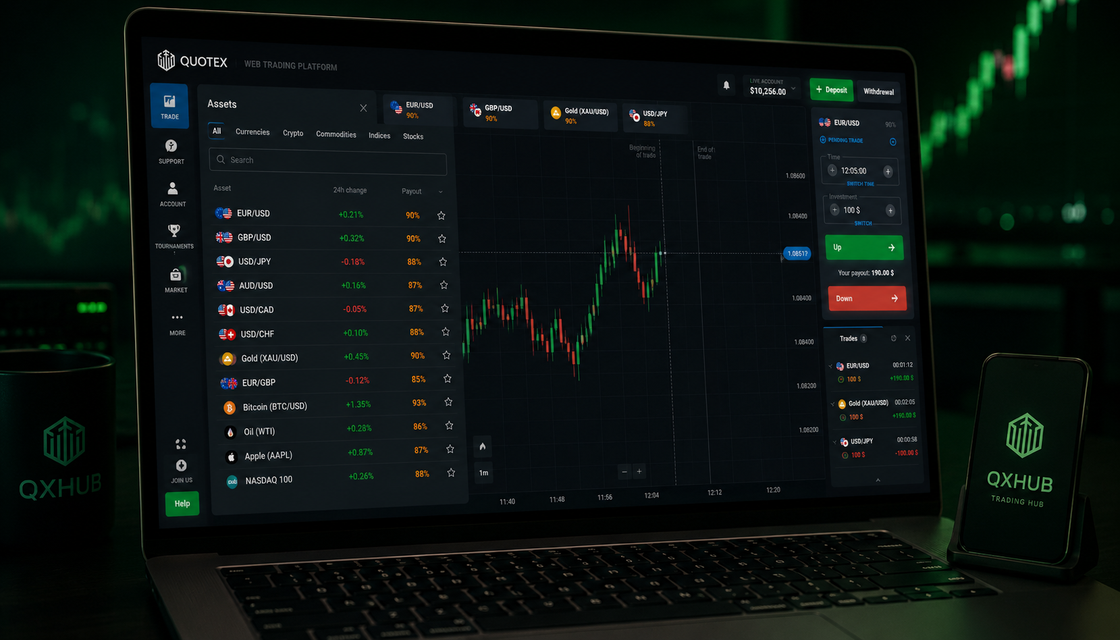
The chart is the centre of the interface because it shows the information behind the decision. Start with the basics: candle bodies and wicks, horizontal price scale, time scale, direction, range boundaries and visible reaction zones. Ask whether price is trending, moving sideways or behaving too chaotically to read. A useful trade idea should fit into one sentence and include the level that would make the idea wrong. If the chart looks random, the professional decision is to wait. The trade panel cannot turn an unclear chart into a clear setup.
3. Timeframes, drawing tools and indicators
Extra tools are useful only when they improve the read. Timeframes change how much market movement each candle represents. Drawing tools help mark support, resistance and trend structure. Indicators can provide context for momentum or volatility. Beginners often overcrowd the screen because every available tool feels important. A cleaner rule works better: keep one timeframe for execution, check a broader view for context and use no more than one or two tools whose purpose you can explain. If a tool adds colour but not clarity, remove it.
4. Trade panel: amount, expiry and direction
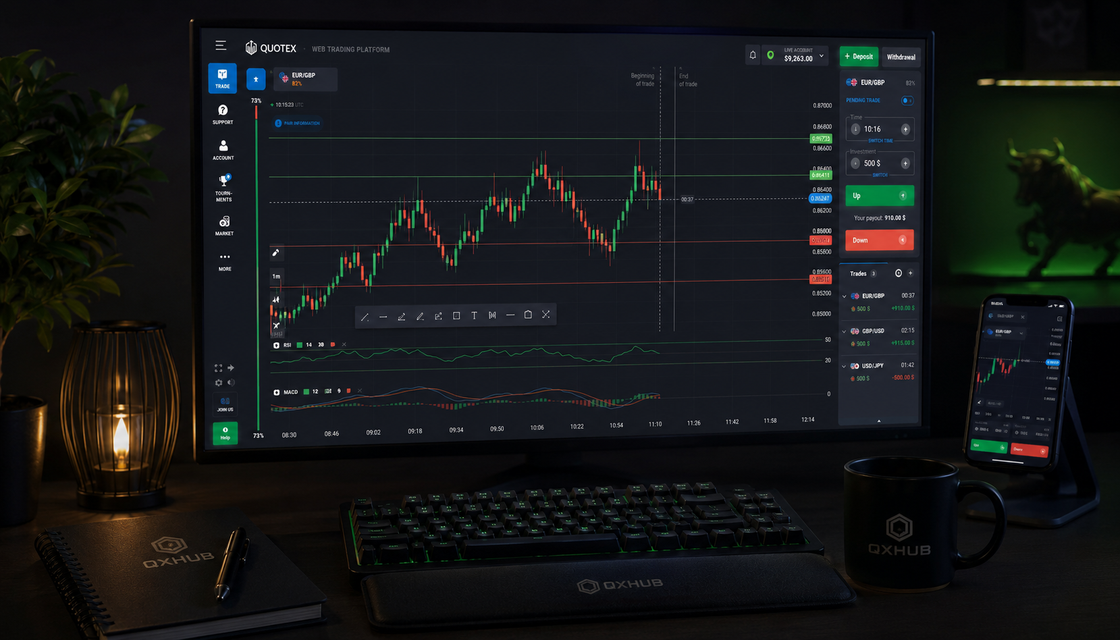
The trade panel is where an idea becomes an order. It normally contains the investment amount, time or expiry setting, potential payout and directional buttons. Because execution feels simple, this is also where rushed mistakes happen. Build a fixed check before every entry: confirm the asset, verify the amount, verify the intended duration and then ask whether the chart still supports the idea. The amount is the money at risk, not a confidence score. Expiry must match the pace of the setup, and the up or down button should be the final step, never the first.
5. Demo mode, live mode and the account area
The account area gives the trade its financial context. It usually shows whether the platform is using demo funds or real money and can include balance, profile, deposit and withdrawal routes. Always know which mode is active before touching the trade panel. Demo mode is the correct place to learn navigation, test a checklist and discover whether the interface encourages impulsive behaviour. Moving to live mode adds emotional pressure, so the amount and daily loss limit should already be written. The account switch is not a signal to trade; it is a reminder to slow down.
How the mobile interface fits into the routine
The mobile interface follows the same basic logic as desktop but compresses the chart, controls and history into less space. It can be useful for checking an existing plan or reviewing the market, yet the smaller screen can hide context and make fast entries feel too convenient. Beginners usually learn the layout more clearly on a laptop or desktop. If mobile use makes you switch assets, change amounts or click before reading the chart, return to the larger screen. Convenience should support a prepared decision, not replace the preparation.
6. Trade history and the review area
Trade history should be treated as evidence, not entertainment. It shows which asset was used, the chosen direction, duration and outcome. That information becomes valuable when it is paired with a journal that records the reason for entry, market condition and whether the rules were followed. Do not stare at a recent win as proof of skill or at a loss as a reason for immediate revenge. Review a short series after the session. The platform history explains what happened; a truthful journal helps explain why it happened.
A five-minute beginner orientation routine
Before the first trade of a session, spend five minutes getting oriented. Confirm demo or live mode. Choose one asset and leave the rest alone. Read the chart and name the market condition. Check the amount and expiry fields. Review the last few trades and write one rule for the current session. Then decide what would make you stay out. This routine feels slow only at first. In practice, it prevents accidental settings, impulsive entries and the expensive habit of using the interface faster than you can analyse the market.
Common interface mistakes and the habits that replace them
Typical beginner mistakes include entering before confirming the asset, leaving the wrong amount in the panel, forgetting whether the account is on demo or live, watching the buttons more than the chart, stacking too many indicators and switching markets from boredom. Replace each mistake with a visible habit: one asset per practice block, a fixed pre-entry check, a clean chart, a small amount and a session stop rule. The interface is designed to make actions easy. Your routine must make careless actions difficult.
Final advice: learn the screen before you trust the click
You do not need to master every Quotex feature on the first day. Learn the essential zones and the order in which they should be used: market, chart, execution settings, account context and review. Practise that order on demo until it feels natural. Keep the screen clean and the amount small. A simple interface can still produce complex emotional mistakes, so let the platform support a written plan instead of setting the pace. A useful interface is not the one you click fastest; it is the one you can use without losing your discipline.
Practical route for Quotex trading interface
Use this route after reading the guide. It turns Quotex trading interface into a repeatable routine: one idea, one chart check, one risk limit and one clear Quotex action instead of impulsive entries.
- Learn how the Quotex trading interface works: asset selector, chart area, trade panel, demo mode, mobile view and the checks beginners should make before every trade.
- Read the chart before touching the trade panel; the buttons execute an idea but do not create one.
- The main interface layout at a glance
- Asset selector: choose the market before the setup
Write the reason you opened this page in one sentence. Compare it with the guide's core point: Treat the interface as a working environment, not as a screen that asks for a fast click. If the reason is still vague, stay on demo and sharpen the rule before touching a live balance.
Open one asset and connect the idea with the section "Why the Quotex interface matters more than beginners think". Do not jump between markets. A clean rehearsal means the same timeframe, the same expiration logic and the same condition for skipping the trade.
Before any real click, set the amount, the daily stop and the maximum number of attempts. Keep this filter beside the chart: Trading involves risk. Compare the platform, read the rules and never trade funds you cannot afford to lose. A strong trader protects attention first, capital second and ego never.
If the checklist still holds, use the most relevant path: Registration. If the context changes, compare it with Fast entry or Android app. The best route is the one that matches the reader's goal, not the loudest button.
Use the guide like a trading plan
A visitor searching for Quotex trading interface usually needs a direct answer, not hype. This guide connects that question with Learn how the Quotex trading interface works: asset selector, chart area, trade panel, demo mode, mobile view and the checks beginners should make before every trade. and keeps the focus on the decision a beginner actually has to make next.
A calm trader does not turn one paragraph into a signal. Read the key points, compare them with the chart, then ask whether timing, amount and risk still agree. The strongest idea in this page is simple: Treat the interface as a working environment, not as a screen that asks for a fast click.
When the idea is clear, move in order: open the right Quotex route, practise the workflow on demo and only then decide whether Registration, Fast entry or Android app fits the session. If the rule feels rushed, the better decision is patience.
- Read the chart before touching the trade panel; the buttons execute an idea but do not create one.
- Confirm the asset, amount, expiry and demo or live mode before every entry.
- Keep the chart simple and use only tools that make the current market structure clearer.
- Trading involves risk. Compare the platform, read the rules and never trade funds you cannot afford to lose.
Quick answers
What is the most important part of the Quotex interface?
The chart area is the most important because it shows the price movement behind the decision. Read it before using the trade panel.
What should I check before entering a trade?
Confirm the asset, market condition, amount, expiry, account mode and the reason that would cancel the idea.
Is the Quotex mobile interface suitable for beginners?
It can be useful, but a larger desktop screen usually makes the chart, controls and account context easier to understand while learning.
Why do beginners make interface mistakes?
Most errors come from rushing, switching attention too quickly or using execution controls before forming a clear chart idea.
Should I use every available indicator?
No. Use only tools that clearly improve your understanding of trend, level, momentum or volatility.
What is the trade history area useful for?
It records activity and outcomes. Pair it with a journal to review the quality of the decision rather than only the result.
Should I learn the interface before using real money?
Yes. Practise navigation and a fixed pre-entry checklist in demo mode before considering a live trade.
How should I choose an asset in the interface?
Start with one or two readable assets, confirm the current conditions and avoid constant switching during the same practice session.
What does expiry mean in the trade panel?
Expiry is the point at which the trade outcome is evaluated. It should match the pace and logic of the setup, not be chosen randomly.
How can I keep the Quotex interface simple?
Use one primary chart, a broader context view when needed and only one or two tools with a clear purpose.
How should a beginner use Quotex trading interface?
Treat Quotex trading interface as a decision filter, not as a signal by itself. Start with the page's main idea: Treat the interface as a working environment, not as a screen that asks for a fast click. Then check one chart, one timeframe and one amount on demo before any real-money step.
What should I check before applying Why the Quotex interface matters more than beginners think?
Check whether the market still matches the section "Why the Quotex interface matters more than beginners think", whether Read the chart before touching the trade panel; the buttons execute an idea but do not create one. is true on the chart and whether your amount fits the planned risk. If one part is missing, skipping is the professional choice.
Next step
Choose a topic by task: brokers for platform selection, guides for access, strategies for setups, risk for discipline and investing for longer market logic.